
If a Lovable app breaks after an edit, reproduce one failing action in the current preview before asking for a fix. If you can isolate the problem and want to keep the newer changes, try one focused repair. If a recent edit broke several things, preview the last version that worked and test it before you restore it.
Find where the problem happens
Open the current preview from the editor and repeat the action that failed. If you have a published site, try the same action at its public address. Use the same device size and starting state where you can. Lovable's preview guide explains how to switch screen sizes and open the preview separately.
| What you see | What to check first |
|---|---|
| The page loads, but a button or layout behaves incorrectly | Record the exact action, screen size, and expected result. Compare with the version before your last edit. |
| The preview is blank or shows an error | Save the exact message if there is one. Note whether it appears when the page loads or only after an action. Ask Lovable to investigate that symptom. |
| The editor, previews, or a connected service will not load | Check Lovable Status and the affected provider's status before changing your project. A green status page still leaves your project or connection to investigate. |
| The current preview works but the public site differs | Confirm the public URL and which version was published. Check how Lovable publishes updates before editing the code. |
Write down how to reproduce it
Give Lovable the page and version you tested, the steps you took, what you expected, what happened, and the most recent change you can tie to the problem. Include the exact error message if one appeared. Remove credentials and customer information from screenshots or logs before sharing them.
Our example uses an isolated copy of Patch & Press, the fictional clothing-repair site from the Lovable prompts guide. The header link Email the workshop is supposed to scroll to the contact section. The email link inside that section has a separate job. Its mailto: address is a demo address.
For this exercise, we changed the contact section's ID from contact to workshop-contact while leaving the header link at #contact. An ID names a spot on the page. A link starting with # tells the browser to jump to the spot with that name. In our broken preview, the address gained #contact when we clicked, but the page stayed at the top. The link pointed to a name that no longer existed.
Use this short report for your own project.
- Where and how to reproduce — Open the current preview at the top of the homepage and select Email the workshop in the header.
- Expected — The page scrolls to the contact section.
- Actual — The address ends in
#contactand the page stays at the top. No error banner is needed to reproduce this failure. - Last relevant change — The contact section now has the ID
workshop-contact. The email link in that section still targets the demo address.
Option 1. Ask for one focused repair
When the issue is isolated and you want to keep recent changes, say which behavior to fix and which adjacent behavior to preserve. Here is the prompt we used in the project chat.
In the current Patch & Press preview, clicking “Email the workshop” in the header changes the URL to #contact but leaves the page at the top. It should scroll to the contact section. The section now has the id workshop-contact. Update only the header link to target #workshop-contact. Keep the section id, visible text, layout and mailto:hello@patchandpress.example link in the contact section as they are. Then tell me what changed.
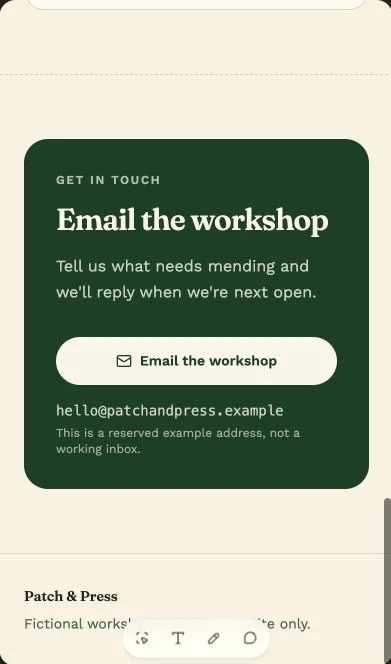
Check the new preview yourself. After the repair, the address ended in #workshop-contact and the contact heading came into view. The separate email link still pointed to mailto:hello@patchandpress.example. The mobile preview below shows where the header click landed.
Option 2. Return to a version you have checked
A rollback is useful when a recent edit broke several things, or when you can give up the code changes made since a working version. In the editor, select Show history and choose an earlier version that you can test. Try the failing action in that snapshot. Use Open preview in new tab if the snapshot inside the editor does not load. To make the selected version current, choose Revert to this version and confirm Revert. Some older snapshots can be previewed even when their Revert action is unavailable. Lovable version history

We reintroduced the same link mismatch, then previewed the version where the link had already been fixed. Its header click brought the contact section into view. We restored that version and repeated the check in the current preview.
The restored version brings back the earlier project code. Database records, uploaded files and actions handled by another service have their own recovery paths. For a published app, also check which version visitors see. The publishing guide explains how to update the public version.
Verify the original action and one nearby action
Start at the top of the current preview and repeat the same click on a narrow and wide screen. On both sizes, check the link's destination and whether the contact section comes into view. Then check the separate email destination. Here is what we observed in the current editor preview.
| Version | Header click on narrow and wide screens | Link inside the contact section |
|---|---|---|
| Broken | The address ended in #contact and the page stayed at the top. |
mailto:hello@patchandpress.example |
| After the focused repair | The address ended in #workshop-contact and the contact section came into view. |
Same demo address |
| After restoring the working version | The contact section came into view again at #workshop-contact. |
Same demo address |
Inspecting its address establishes where the link points. Testing delivery would require a working inbox.
Keep your reproduction steps and the checks that passed. If another attempt only repeats the same result, stop sending broad fixes. Use the error text and steps to ask Lovable to investigate before editing again, or share a sanitized report with the appropriate support team. If usage limits block the next attempt, see Lovable pricing and credits.
For structured practice in making and testing small changes, RianVibe's Build Your First Digital Product with AI course uses a Todo app and then helps you apply the process to your own project.