
A useful Lovable prompt says what you want to build or change, supplies the facts, names what must stay the same, and gives you something to check. You do not need a special role such as “world-class developer” to start. A small, clear request is easier to inspect than a long list of unrelated features.
This guide follows one original practice website through a first build, an opening-hours change, a discussion about design, a mobile-button adjustment, and service-specific email links. The examples were run in Lovable for this guide. The business is fictional; the screenshots show the actual software preview.
If you have not used the editor yet, start with What Is Lovable?. Here we focus on writing and checking different kinds of prompt.
Give the prompt a job
Before opening the request field, write down these five things:
| Part | For our practice website |
|---|---|
| Visitor and goal | Someone wants to see clothing repairs, check the hours, and find an email contact |
| Facts to use | Three named services, supplied hours, and a demonstration email address |
| Requested result | One readable page |
| Boundaries | No invented prices, reviews, booking, accounts, or database |
| Checks | Read the service names and hours; inspect contact destinations; try the narrow layout |
This follows Lovable's prompting guidance: decide what the product is, who it serves, and the key action before asking for a build. Our examples and checks below are independent exercises.
Use an account with an available building allowance. A request can consume credits without producing the result you wanted. We make no fixed-credit or free-completion promise; see the pricing and credits guide if you need to understand your balance.
1. Build from supplied facts
We use Patch & Press, a fictional clothing-repair workshop. The address hello@patchandpress.example is a reserved demonstration address, not a working inbox. It lets us inspect a link without contacting a real business.
The copyable prompts and demo page are in English so you can compare the labels with the screenshots. You can use your preferred language for your own project; explicitly name the language visitors should see and review the resulting text.
Start a new project with this prompt:
Build a one-page English-language practice website for Patch & Press, a fictional clothing-repair workshop.

A visitor should be able to see the repairs we offer, check our opening hours, and find our email contact.

Use exactly these facts:
- Heading: "Clothes worth keeping."
- Three service cards in a section called "Repairs": Hem adjustment — Shorten trousers or a skirt; Button replacement — Replace a missing button; Seam repair — Mend an open seam.
- Opening hours: Tuesday-Saturday 10:00-18:00. Sunday and Monday closed.
- One "Email the workshop" link to mailto:hello@patchandpress.example, with that address also visible as text. This is a reserved example address, not a working inbox.
- A visible notice: "Fictional workshop. Practice website only."

Use a readable, warm cream-and-dark-green design with generous spacing. Make the page usable on phones and desktop screens.

Do not invent prices, reviews, a street address, qualifications, or guarantees. Do not add a form, booking, accounts, payments, a database, or external images. Do not publish the site. Build only this page.
The prompt includes a visual direction, but its most important details are observable: the services, hours, contact destination, notice, and excluded features.
Open the result and compare it with the supplied facts:
| Check | What to look for |
|---|---|
| Heading | Clothes worth keeping. |
| Services | Hem adjustment, Button replacement, and Seam repair, with the supplied descriptions |
| Initial hours | Tuesday–Saturday 10:00–18:00; Sunday and Monday closed |
| Contact | The visible example address and an email link pointing to it |
| Boundaries | The fictional-workshop notice; no invented prices or reviews; no form or booking flow |
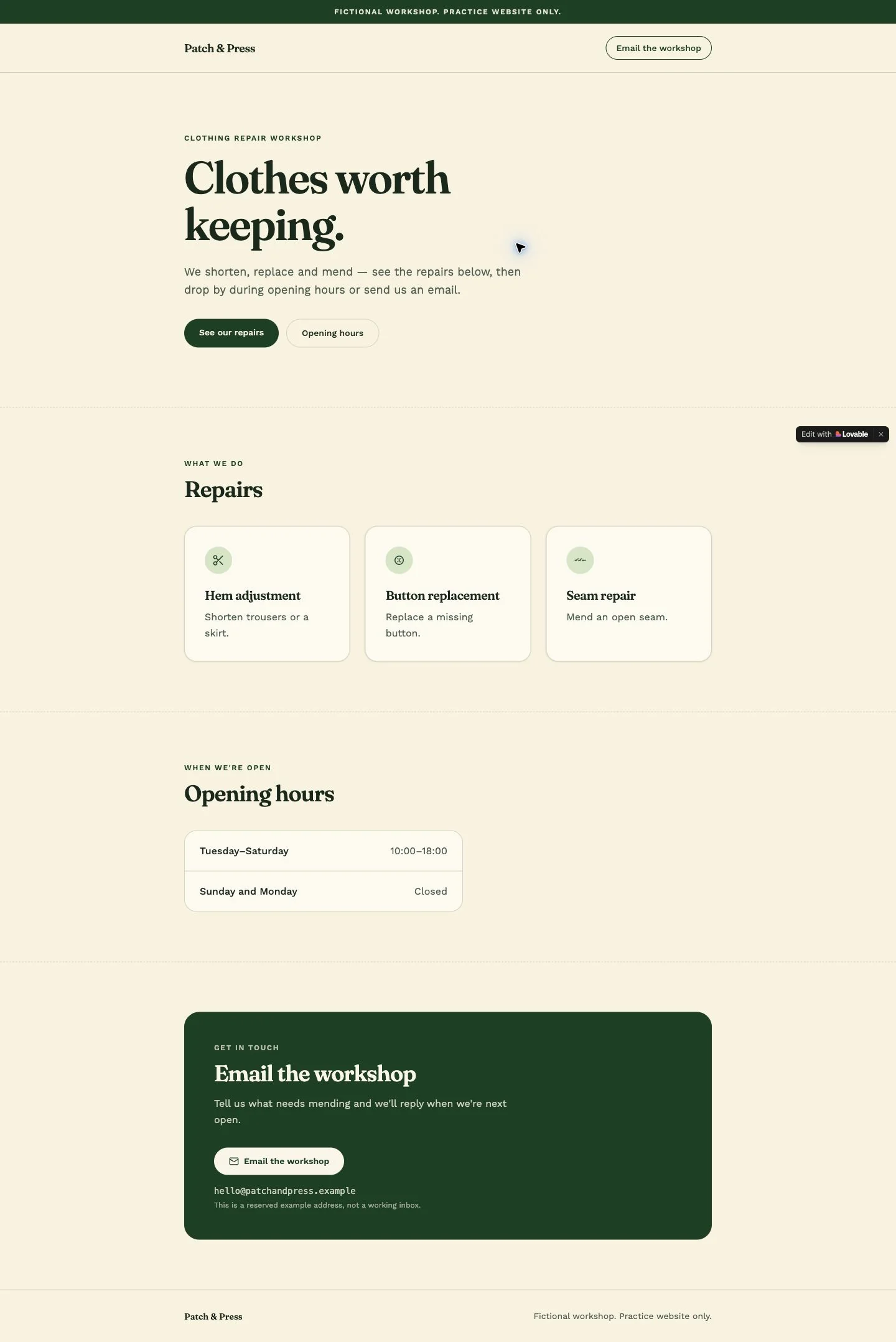
In our first result, the header's Email the workshop link scrolled to the contact section. The lower link with the same wording pointed to the email address. The label alone did not establish the destination. Lovable also supplied some supporting copy; review additional wording before using it as a real business statement.
Your layout may differ. Compare the facts and behavior, rather than trying to reproduce these exact pixels.
2. Change content without requesting a redesign
Suppose the workshop will close earlier on Saturdays. Give the complete new schedule so the builder can separate Saturday from the original Tuesday–Saturday row.
Change only the opening hours for Patch & Press:
- Tuesday-Friday: 10:00-18:00.
- Saturday: 10:00-15:00.
- Sunday and Monday: closed.

Update every place where these hours appear. Keep the workshop name, heading, services, descriptions, email address, links, design, and fictional-workshop notice unchanged. Do not add any features.
Open the current preview from the editor and inspect the hours again. A previously opened preview tab can still show an earlier version; in our session, reopening the editor's current preview exposed the updated schedule.
We checked that Saturday became 10:00–15:00, Tuesday–Friday remained 10:00–18:00, and Sunday and Monday stayed closed. The heading, three service names, and email destination were still present.
A preservation sentence helps define the task. You still need to check the preserved items after the change.
3. Turn a vague design request into a decision
“Professional” can mean different things: more space, different colors, a quieter layout, stronger typography, or a larger contact action. Ask yourself which visible result you actually need.
We tried this request in Chat mode to discuss the design before applying a change:
Make the contact area look more professional.Lovable asked which direction we wanted and offered a split card, a light framed card, and a compact row. That was a useful clarification: the original request had not selected any of those outcomes. We left the proposed redesign unapplied and narrowed the task.
For this exercise, the actual goal was a wider, taller contact button on a phone. Switch to Build when you are ready to request the edit:
On screens narrower than 640px, make only the 'Email the workshop' email link inside the contact section fill the available content width and be at least 48px tall.

Keep the header's contact link unchanged. At 640px and wider, keep the current email button size. Keep the existing single contact card; do not apply the earlier proposed split-card redesign.

Keep all wording, opening hours, service cards, email destinations, colors, and other layout unchanged. Do not add any features.
The request identifies the element, screen range, desired size, and things to preserve. The 48px height is a concrete choice for this exercise, not a claim that one number makes an entire site accessible.
Check a narrow view, then a desktop view:
- On a phone, the email action inside the contact card should fill its available content width and be at least 48px tall.
- The header's contact link should keep its existing treatment.
- On desktop, the contact email button should keep its previous size.
- Hours, service text, colors, and destinations should remain the same.
- The page should not require sideways scrolling.
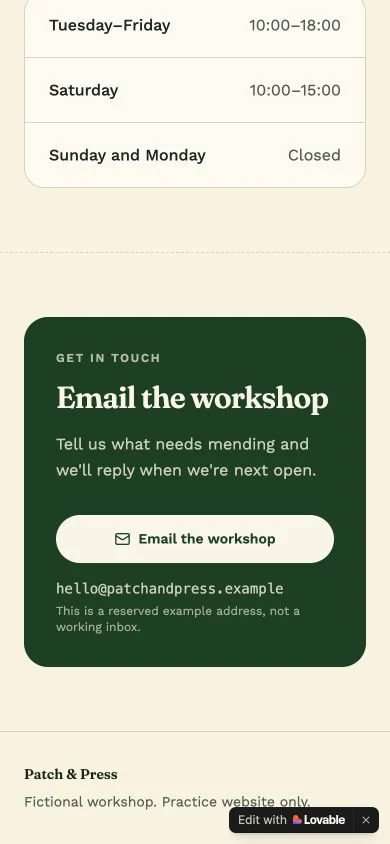
In our Chrome preview, the button was 48px tall at a 390px viewport width and kept its previous 44px height at 640px and 1440px.
For a larger or uncertain change, Lovable's Plan mode can prepare a proposal for review. Chat, planning, and applying an edit are different actions; check the selected mode and what the tool proposes to do.
4. Describe behavior through an example
A behavior request needs more than “make the buttons work.” Say what each action should open and what information it should carry.
Now add an email link to each service card. Each link should prepare a subject identifying that service:
Add one email link to each card in the Repairs section:
- Hem adjustment: label 'Ask about hem adjustment'; subject 'Repair question: Hem adjustment'.
- Button replacement: label 'Ask about button replacement'; subject 'Repair question: Button replacement'.
- Seam repair: label 'Ask about seam repair'; subject 'Repair question: Seam repair'.

All three links must open mailto:hello@patchandpress.example with only the matching subject prefilled.

Keep the existing 'Email the workshop' links, visible email address, opening hours, service descriptions, design, mobile contact-button sizing, and fictional-workshop notice unchanged. Do not add a form, booking, database, or email-sending service.
Inspect each destination, not just its appearance. You can copy a link address from the browser's context menu to check it. An email handler may display the prepared draft if one is configured; do not send a message to the demonstration address.
| Service | Recipient | Expected subject |
|---|---|---|
| Hem adjustment | hello@patchandpress.example | Repair question: Hem adjustment |
| Button replacement | hello@patchandpress.example | Repair question: Button replacement |
| Seam repair | hello@patchandpress.example | Repair question: Seam repair |
Spaces in the link address may appear as encoded characters such as %20. What matters is the recipient and the readable subject they represent.
We verified the three link destinations and their decoded subjects. We did not test email delivery: the example address cannot receive messages, and opening a draft is different from sending or receiving one. A real website needs an address its owner controls and a separate delivery check.
Keep a small request-and-check routine
After every change, inspect the new behavior and the things you asked Lovable to preserve. Lovable's prompting library guidance also recommends running one prompt at a time and reviewing the result before moving on.
Use this worksheet to prepare your next request. Fill the brackets with details from your own project:
Context: [Which page, section, or feature are we working on?]
Change: [One specific result I want.]
Facts: [Exact content, values, or destinations to use.]
Keep unchanged: [The relevant working behavior and content.]
Check: [What I should see or be able to do afterward.]
The worksheet is a starting structure, not a command to include every detail you know. Add information that helps the builder make the decision you are asking it to make.
| If your request says… | Make the next request more specific |
|---|---|
| Make it better | Name the element and the visible change you want |
| Change the hours | Supply the full new schedule and where it applies |
| Fix the contact buttons | Identify the incorrect action and the intended destination |
| Add the rest of the app | Choose the next small visitor task and define its checks |
If something breaks, record the expected behavior, what happened instead, and the steps that reproduce it. That gives your next request useful evidence.
Practice the method on your own product
The same routine works beyond a workshop website: define a small result → supply facts → request one change → inspect → try the behavior. Keep a note of what passed before extending the project.
For structured practice, RianVibe's Build Your First Digital Product with AI course uses a Todo app to teach working with Lovable, making changes, checking results, data, login, and publication before transferring the method to your own idea. The introduction is free; the full course is paid. Provider charges are separate.
When your idea needs saved information or accounts, read the prototype-to-live-product readiness guide before inviting real users.
FAQ
Do I have to write Lovable prompts in English?
You can describe your project in your preferred language and state which language the website should use. These examples stay in English to match the demonstration and its visible labels. Check generated copy carefully when adapting it for another audience; we did not run separate Thai or Vietnamese generation sessions for this example.
Will the same prompt produce the same design?
Not necessarily. Generated layouts and wording can vary. Use the required content, destinations, and behavior as your acceptance checks rather than expecting an identical screenshot.
Do these prompts need a database?
No. The exercise changes a static page and email links. It does not save enquiries, authenticate users, or send email from a server. Those features would need a separate scope and additional checks.
Original English-language example run and checked in Lovable's project preview on October 29, 2026. Screenshots show that demo; the workshop and business details are fictional. No website publication, email delivery test, backend setup, or measured business outcome is claimed. Official prompting and mode documentation was checked on the same date.